WebChat Voice Channel
The WebChat Voice Channel enables natural voice interactions within the Druid web snippet, allowing users to switch effortlessly between typing and speaking. By using native or third-party STT and TTS services, Druid provides a responsive and accessible interface for web-based AI Agents.
Out-of-the-box speech services includes:
-
Druid (available as tenant feature in technology preview in Drud 9.20)
-
Microsoft Cognitive Services
-
ElevenLabs (TTS available starting with Druid 9.15 and STT available starting with Druid 9.18)
-
Deepgram (STT only)
-
Soniox (STT)
-
Speechmatics (STT available starting with Druid 9.20)
To integrate a preferred speech provider not listed above, reach out to your Druid representative.
How the channel works
Once speech services are enabled, the interaction follows a streamlined flow:
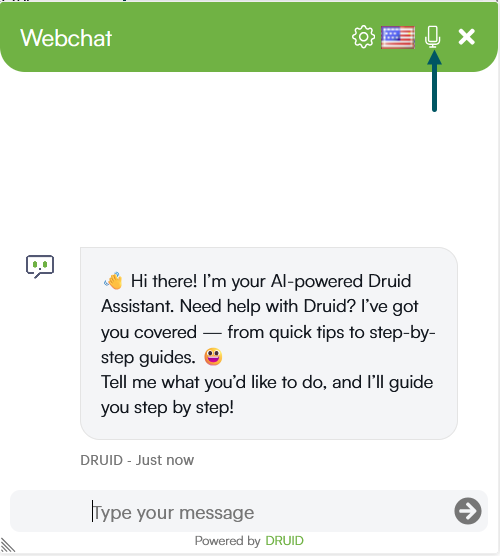
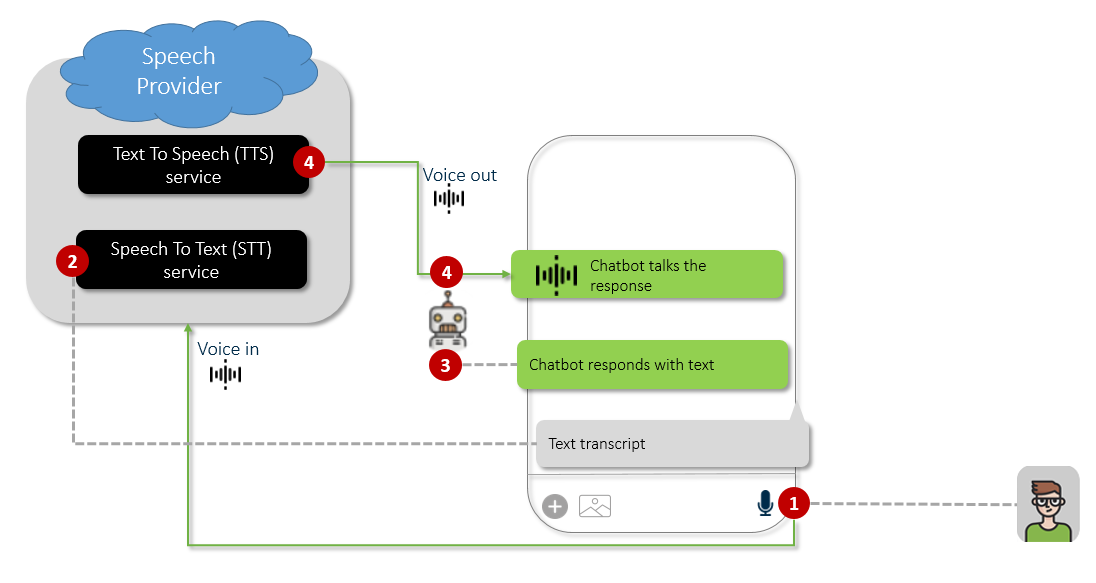
- Users click the microphone icon in the chat snippet to begin speaking.
- The Speech-to-Text (STT) service processes the voice input in real-time, displaying a transcript in the input field.
- Once the sentence is complete, the AI Agent processes the text and generates a response.
- The response is displayed as text and simultaneously spoken back to the user via the Text-to-Speech (TTS) service.
Enabling Voice Interactions
This section explains how to enable voice interactions.
Step 1: Configure Speech Providers
Configure voice interactions directly within the WebChat channel settings:
- In the Druid Portal, navigate to your AI Agent and select the Channels tab.
- Search for 'webchat' and click on the WebChat card.
- At the top of the modal, click the tab for the speech provider you wish to configure.
- Configure the desired speech providers following the instructions in the subsequent sections.
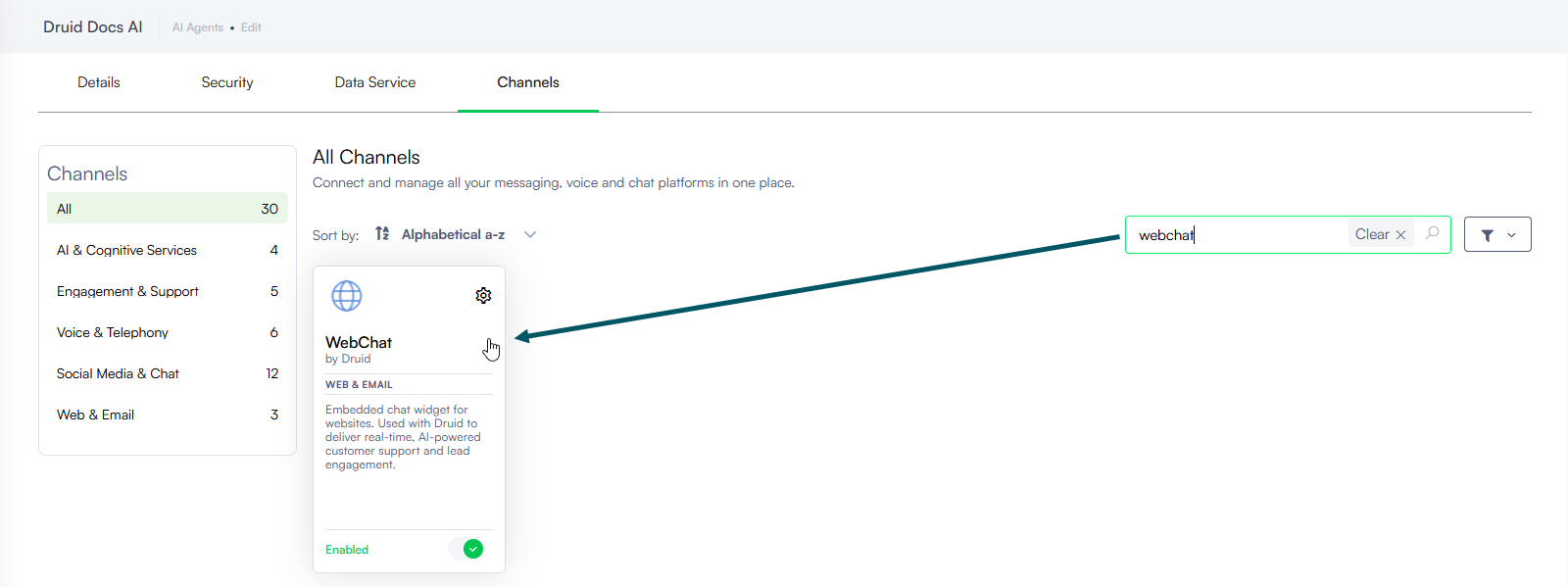
The channel configuration modal opens.
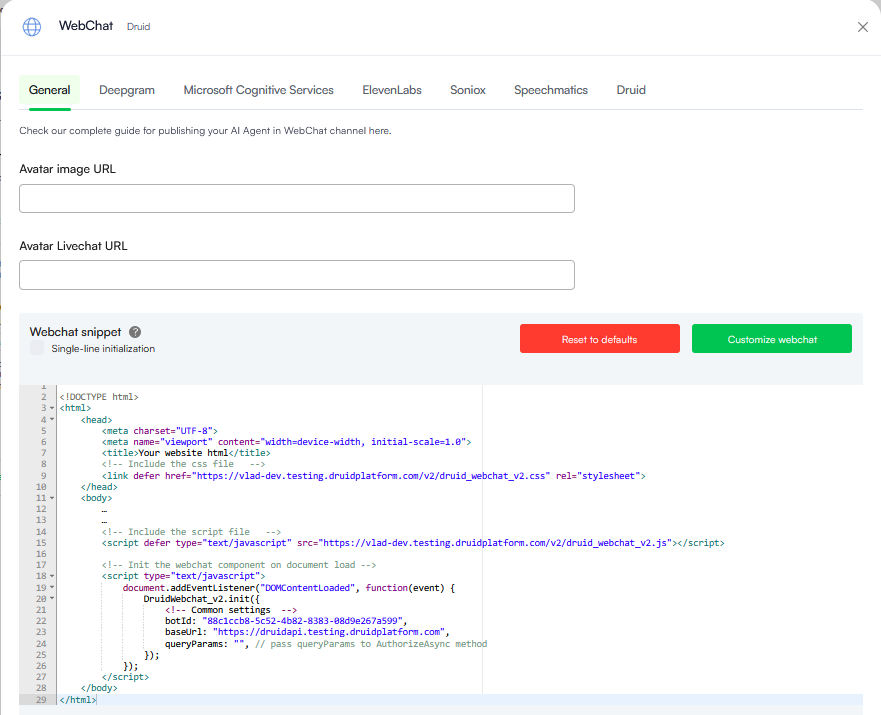
Setting up Druid-native speech
To use voice interactions with Druid-native speech services, you need the API key from your Druid representative.
Setup procedure:
- In the channel configuration modal, click the Druid tab.
- Enter the details you received from your Druid representative.
- Map the languages your AI Agent supports to specific Druid languages in the configuration table.
- In the table, click the plus icon (+) to add a row.
- From the Language dropdown, select the AI Agent language (default or additional).
- From the Voice dropdown, select the specific voice the AI Agent will use to respond. The model is automatically filled in after you select the voice.
- Click the Save icon displayed inline.
- Click Save at the bottom of the page and close the modal.
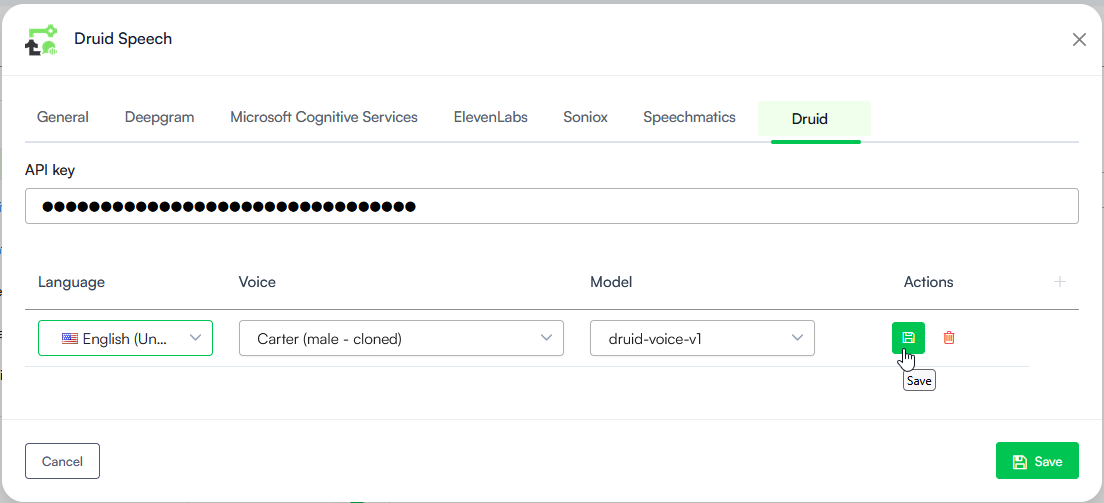
Add the desired voice per AI Agent language as you prefer.
Setting up Microsoft Cognitive Services
- In the channel configuration modal, click the Microsoft Cognitive Services tab.
- Provide the Key and Region provided by Druid Support Team in the voice activation email.
- Map the languages your AI Agent supports to specific voices in the configuration table.
- In the table below the Voice channel details, click the plus icon (+) to add a row.
- From the Language dropdown, select the AI Agent language (default or additional).
- From the Voice dropdown, select the specific voice the AI Agent will use to respond.
- Click the Save icon displayed inline.
- Save the configuration.
Setting up Deepgram
Prerequisites
- You need a Deepgram API Key with Member Permissions. Refer to Deepgram documentation (Token-Based Authentication) for information on how to create a key with Member permissions.
Setup procedure
- In the channel configuration modal, click the Deepgram tab.
- Enter your Deepgram API Key.
- Map the languages your AI Agent supports to specific Deepgram models in the configuration table.
- In the table, click the plus icon (+) to add a row.
- From the Language dropdown, select the AI Agent language (default or additional).
- From the Model dropdown, select the specific Deepgram model the AI Agent will use to respond.
- Click the Save icon displayed inline.
- Save the configuration.
Setting up ElevenLabs
Druid supports ElevenLabs as a high-quality Text-to-Speech (TTS) and Speech-To-Text (STT) provider, enabling your AI Agent to communicate using specialized synthetic voices and custom voice clones.
Prerequisites
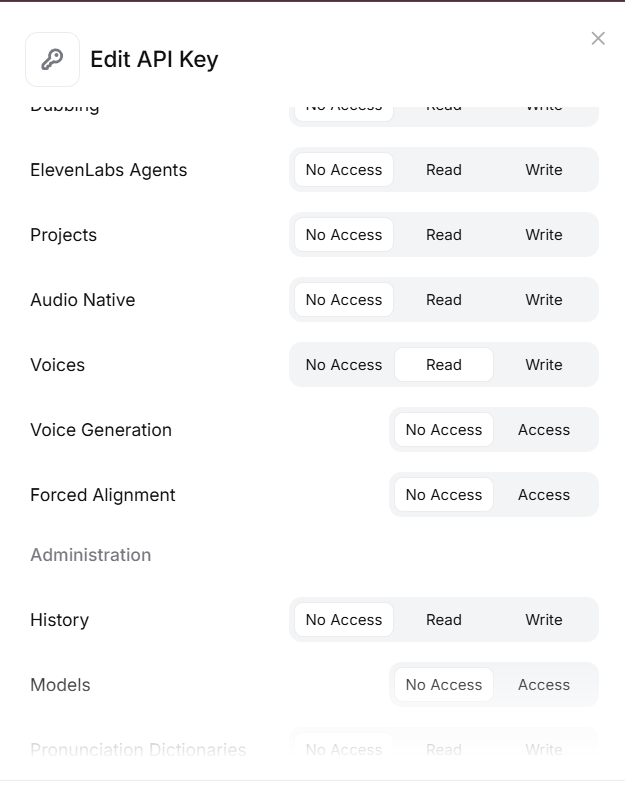
- You need an ElevenLabs API Key. To get API key, go to https://elevenlabs.io/app/developers/api-keys and copy the key ID.
- Make sure to grant the API Key Read permissions for the following endpoints:
- Voices
- Text to Speech
- Speech to Speech
- Speech to Text (for STT support)
- Sound Effects
- Audio Isolation
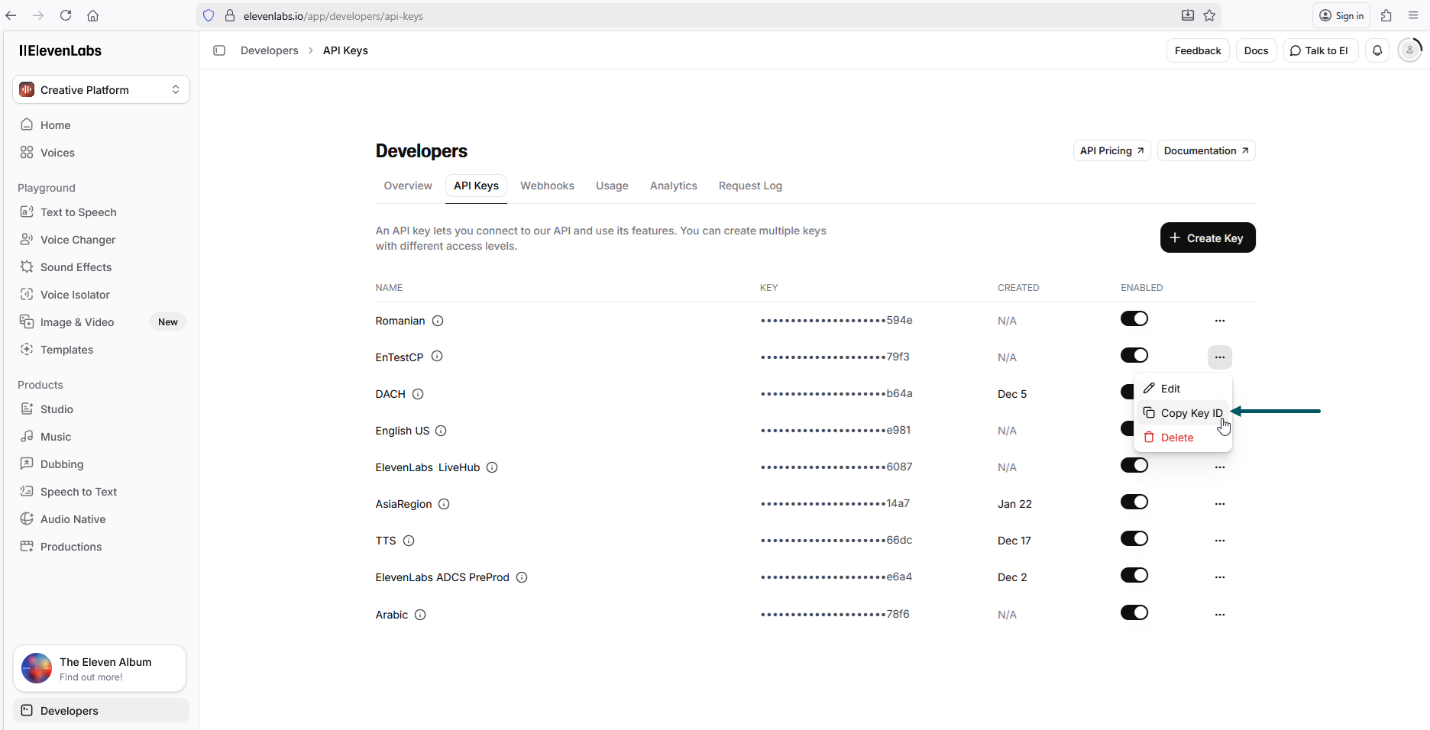
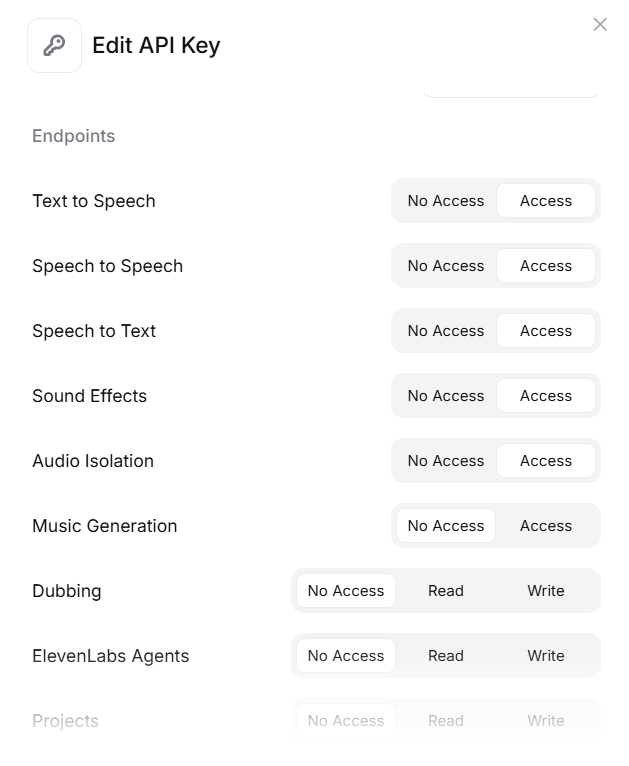
Setup procedure
- In the channel configuration modal, click the ElevenLabs tab.
- Enter your ElevenLabs API Key.
- From the Region dropdown, select the residency region you want to use:
- Global (US) – Uses the global ElevenLabs API endpoint.
- Europe (EU) – Uses the EU residency API endpoint.
- India (IN) – Uses the India residency API endpoint.
- Map the languages your AI Agent supports to specific ElevenLabs languages in the configuration table.
- In the table, click the plus icon (+) to add a row.
- From the Language dropdown, select the AI Agent language (default or additional).
- From the Voice dropdown, select the specific ElevenLabs voice the AI Agent will use to respond. The model is automatically filled in after you select the voice.
- Click the Save icon displayed inline.
- Click Save at the bottom of the page and close the modal.
The selected region determines which ElevenLabs API endpoint is used by the Web Chat Voice channel.
Setting up Soniox
You can use Soniox as a Speech-To-Text (STT) provider for your AI Agent voice interactions. Its models natively support multiple languages and automatic language detection.
Prerequisites
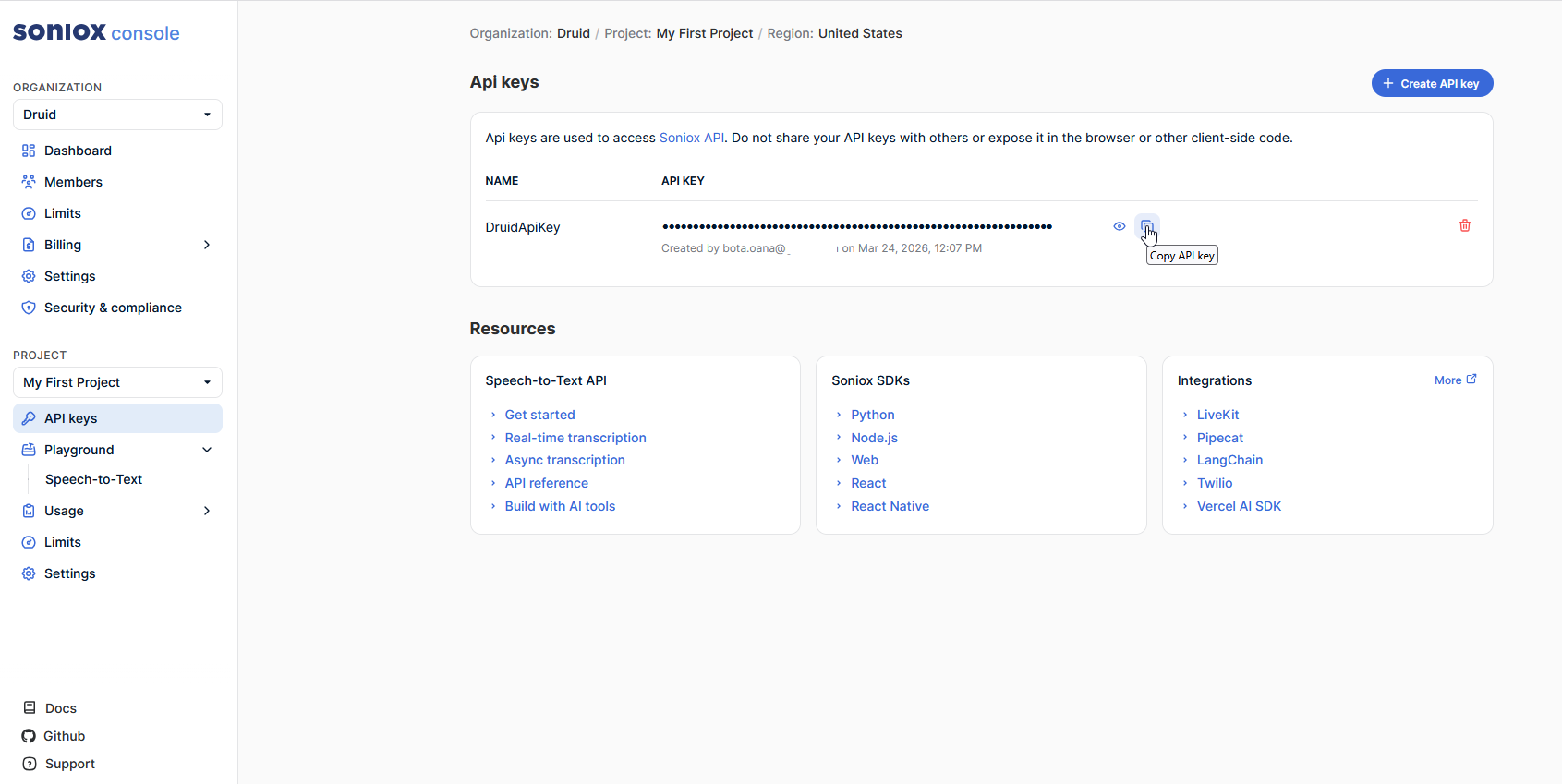
- You need a API Key. To get your API key, sign in https://console.soniox.com/signin/, go to your project > API Keys and copy the key ID.
Setup procedure
- In the channel configuration modal, click the Soniox tab.
- Enter your Soniox API Key and select the model.
- Click Save at the bottom of the page and close the modal.
Setting up Speechmatics
Speechmatics is a speech-to-text provider available in the Voice Channel. It enables real-time and batch transcription using advanced automatic speech recognition (ASR) technology. It supports multiple languages and delivers accurate results across different accents and audio conditions, making it suitable for voice interactions and transcription scenarios.
Prerequisites
- You need a Speechmatics API Key. To get your API key, follow Speechmatrics documentation.
Setup procedure
- In the channel configuration modal, click the Speechmatics tab.
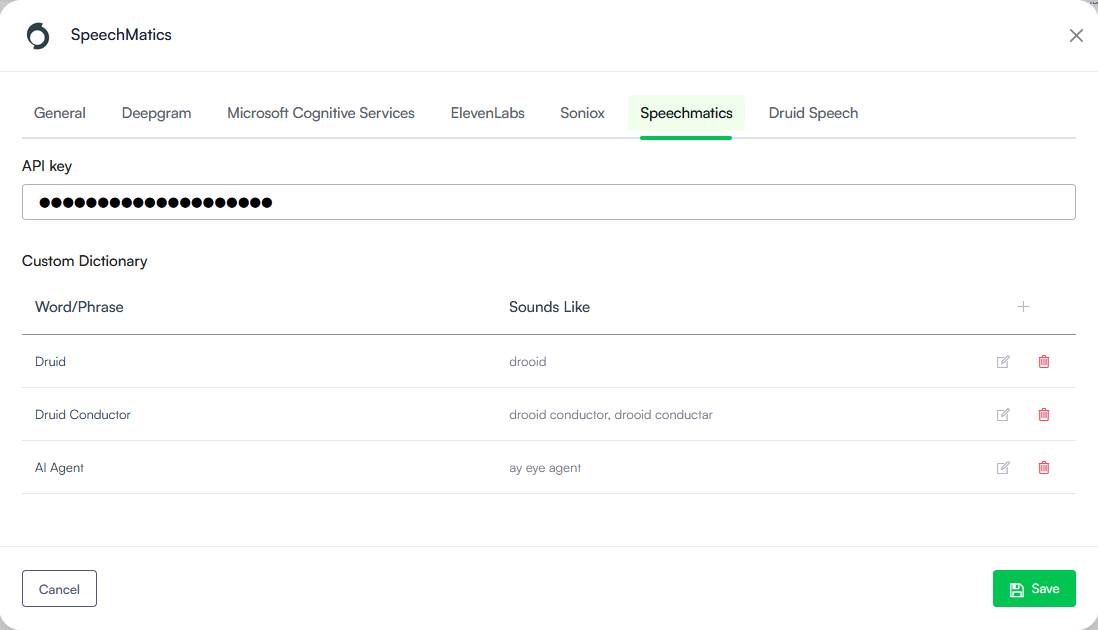
- Enter your Speechmatics API Key.
- (Optional) Configure a Custom Dictionary to improve recognition of organization-specific terminology. The Custom Dictionary allows you to define words or phrases that Speechmatics should recognize more accurately, such as product names, brand names, acronyms, or technical terms. Use the + button to add dictionary entries.
- Save the configuration and close the modal.
For each entry, configure the following fields:
| Field | Description |
|---|---|
| Word/Phrase | The word or phrase that should appear in the transcript. |
| Sounds Like | Optional pronunciation variants that help Speechmatics recognize the term. Multiple values can be provided as a comma-separated list. |
Save the dictionary entry and add as many as you want.
Step 2. Enable Speech Services
Once the speech provider details are entered, you must explicitly activate them for the channel:
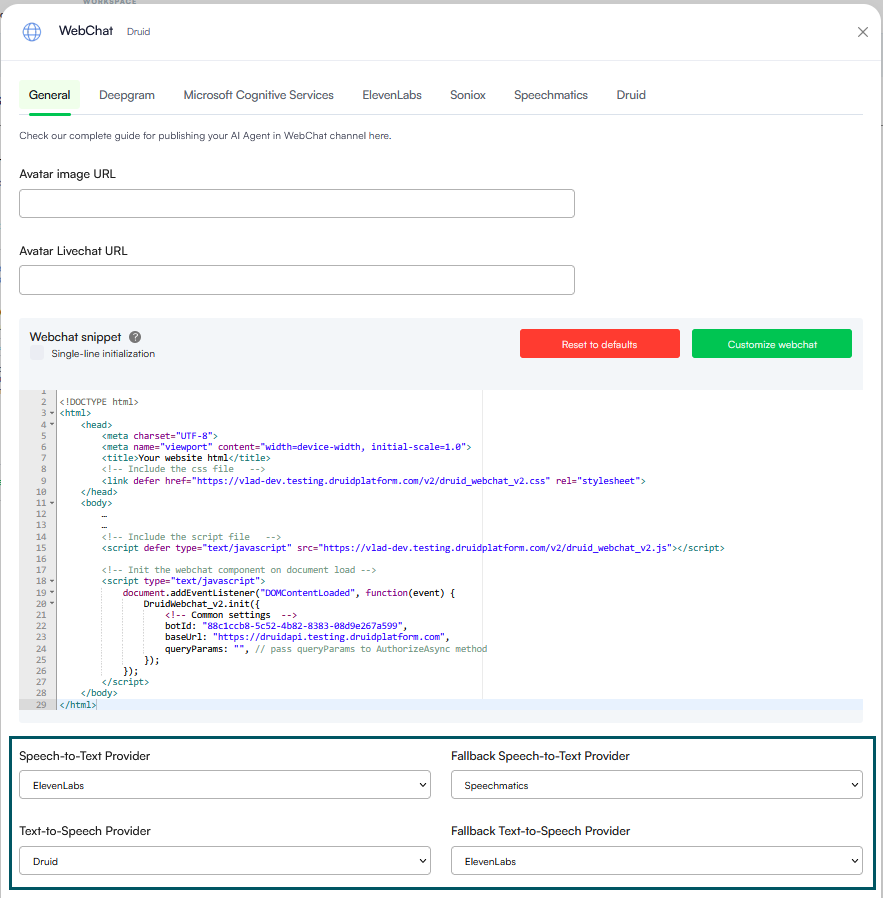
- In the WebChat configuration modal, click the General tab and scroll-down at the bottom of the modal.
- Select the primary Speech-to-Text Provider. If you select a provider other than Azure, you should also select a Fallback Speech-to-Text Provider. The fallback speech provider will be used automatically if primary speech provider does not support the user’s language. In Druid 9.18, you can also select both Azure and ElevenLabs as STT fallback provider and starting with 9.20 you can also use Druid.
- Select the primary Text-to-Speech Provider. If you selected ElevenLabs or Druid, you should also select the Fallback Text-to-Speech Provider. The fallback provider will be used automatically if the primary one does not support the user’s language.
- Click Save and close the modal.